1. CSS: Cascading Style Sheets
1.1 Need for CSS
[!IMPORTANT]
CSS (Cascading Style Sheets) is a language used to describe the presentation (look and formatting) of HTML documents, enabling the separation of content (HTML) from presentation (style).
CSS was introduced to solve problems with HTML, where all styling and presentation (like fonts, colors) were mixed with content, making web pages hard to maintain and inconsistent across sites.
Key Points:
-
CSS allows for clean separation of structure (HTML) and presentation (CSS).
-
Makes sites easier to maintain, update, and ensures consistency.
-
Multiple HTML pages can share the same
.cssfile for a uniform look. -
Supports responsive design for different devices.
1.2 Introduction to CSS
[!IMPORTANT]
CSS is a style sheet language used for describing the presentation of a document written in HTML or XML.
Concept:
-
CSS tells browsers how to display elements (fonts, colors, layouts).
-
With CSS, style can be reused and managed centrally.
CSS vs. Inline Styling:
| Aspect | Inline Styling | CSS (External/Embedded) |
|---|---|---|
| Location | HTML element itself | Separate <style> block or .css file |
| Maintenance | Harder | Easier, changes in one place |
| Reusability | Low | High |
| Examples | <h1 style="color:blue"> |
h1 { color: blue; } |
1.3 Basic CSS Syntax and Structure
[!IMPORTANT]
A CSS rule-set consists of a selector and a declaration block containing property-value pairs.
Structure:
-
Selector: Specifies the HTML element(s) to style.
-
Declaration Block: Enclosed in braces
{ }; contains one or more property-value pairs separated by semicolons.
Syntax:
selector {

  property1: value1;

  property2: value2;

}
Example:
p {

  color: red;

  font-size: 16px;

}
[!TIP]
Remember: Selector (WHO), Property (WHAT), Value (HOW).
1.4 Applying CSS Background Images
The background-image property sets an image as the background of an HTML element.
- Syntax:
background-image: url('image.png');
Other related properties:
-
background-repeat: Repeat (repeat,no-repeat,repeat-x,repeat-y) -
background-position: E.g.,center,top left -
background-size: E.g.,cover,contain,100px 200px
Example:
body {

  background-image: url('bg.jpg');

  background-repeat: no-repeat;

  background-position: center top;

  background-size: cover;

}
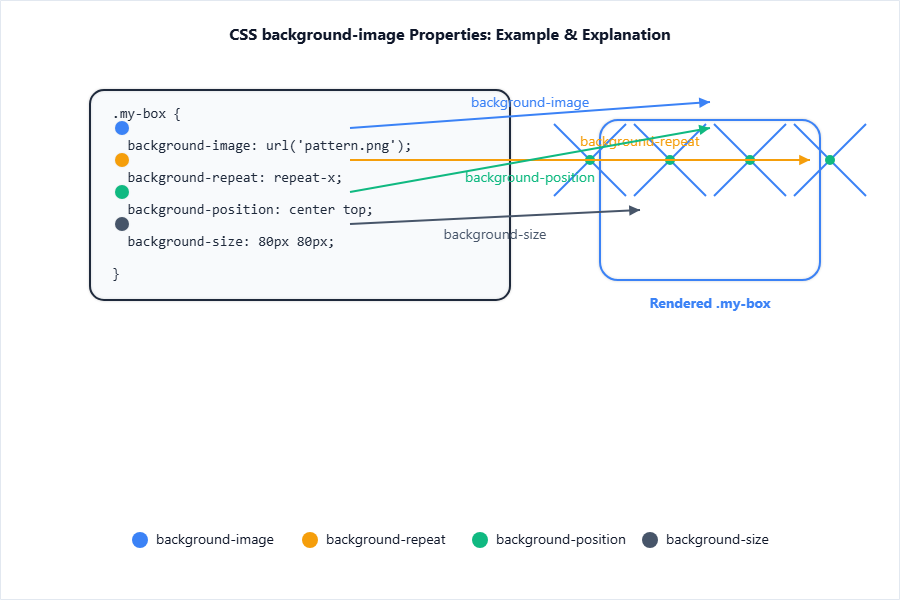
Describes a CSS code block that sets a centered background image covering the entire page, with no repeat.
1.5 CSS Colors and Properties
Colors in CSS can be set using names, HEX, RGB, RGBA, or HSL formats.
-
Named colors:
red,blue,green, etc. -
Hex values:
#ff0000(red) -
RGB:
rgb(255, 0, 0) -
RGBA:
rgba(255, 0, 0, 0.5)(with transparency) -
HSL:
hsl(0, 100%, 50%)
Properties that affect color:
-
color: Text color. -
background-color: Background color.
Example:
h1 {

  color: #3366cc;

  background-color: rgba(255, 255, 0, 0.2);

}
1.6 Manipulating Text with CSS
[!IMPORTANT]
Text properties in CSS allow control over the appearance and formatting of text content in web pages.
Common properties:
-
font-size: Sets the size (16px,1.2em) -
text-align:left,right,center,justify -
text-decoration:underline,line-through,none -
text-transform:uppercase,lowercase,capitalize -
letter-spacing,word-spacing: Adjusts space between letters/words
Example:
p {

  font-size: 18px;

  text-align: justify;

  text-decoration: underline;

  text-transform: capitalize;

  letter-spacing: 2px;

}
[!TIP]
Most common exam Q: “Write CSS to capitalize, underline, and center text in a
<div>.”
1.7 Using Fonts in CSS
Font-related properties control font type, style, and appearance:
-
font-family: List of fonts (with web-safe backup)- Example:
font-family: Arial, Helvetica, sans-serif;
- Example:
-
font-size: Size in px, em, etc. -
font-style:normal,italic,oblique -
font-weight:normal,bold,bolder,100–900
Web-safe fonts: Fonts reliably available on most systems (e.g., Arial, Times, Courier).
Example:
body {

  font-family: 'Times New Roman', Times, serif;

  font-size: 16px;

  font-style: italic;

  font-weight: bold;

}
1.8 Borders and Box Model
[!IMPORTANT]
The CSS box model describes the structure of each HTML element as a rectangular box, consisting of content, padding, border, and margin.
Border Properties:
border-width,border-style,border-color
Example:
div {

  border: 2px solid green;

}
Box Model Components:
| Part | Description |
|---|---|
| Content | The content of the box (text/image) |
| Padding | Space between content and border |
| Border | The border itself |
| Margin | Space outside the border |
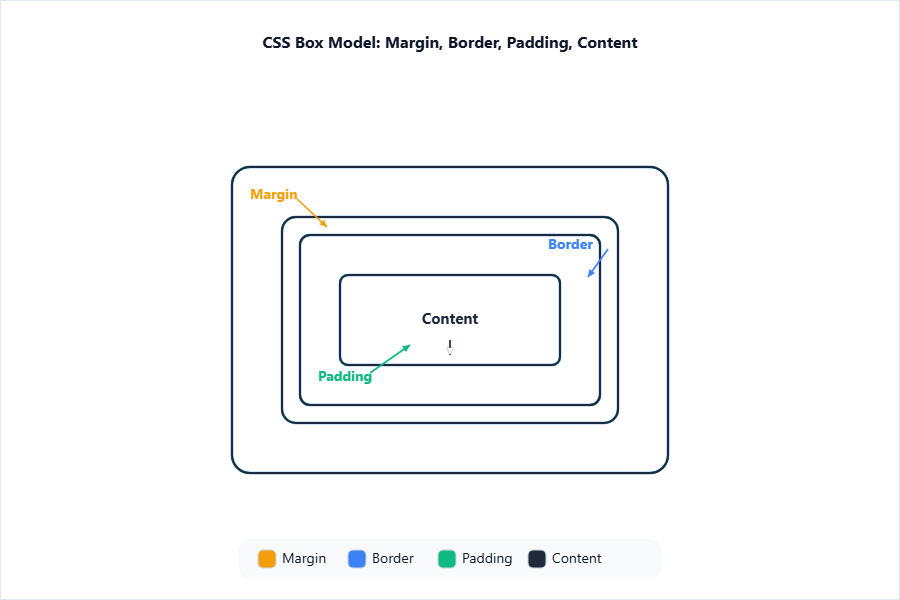
The diagram shows the hierarchical layers of the CSS box model as concentric rectangles.
1.9 Margins and Padding
Margins add space outside the border; padding adds space between content and border.
Individual sides:
-
margin-top,margin-right,margin-bottom,margin-left -
padding-top,padding-right,padding-bottom,padding-left
Shorthand notation:
margin: top right bottom left;
padding: 10px 20px 15px 5px; (TRBL order)
Example:
div {

  margin: 10px 20px;

  padding: 5px 15px 5px 15px;

}
- Above: margin top/bottom 10px, left/right 20px
1.10 Positioning Elements Using CSS
[!IMPORTANT]
The
positionproperty in CSS affects how elements are positioned in the document.
Values:
-
static: Default, flows normally. -
relative: Moved relative to normal position. -
absolute: Positioned relative to nearest ancestor with position (other than static). -
fixed: Fixed to the viewport, does not scroll. -
sticky: Switches between relative and fixed, depending on scroll.
Z-index: Controls stacking order when elements overlap (z-index: 2;).
Example:
#box1 { position: absolute; top: 50px; left: 30px; z-index: 3; }
#box2 { position: fixed; bottom: 10px; right: 10px; }
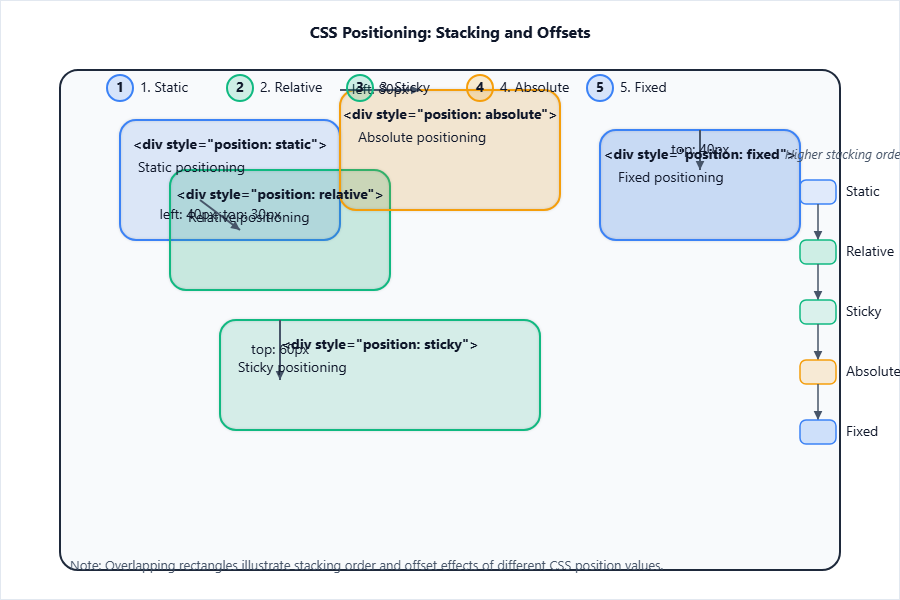
Shows where each element type appears and how z-index layers them.
1.11 CSS2 Features
Key features and improvements over CSS1:
-
Improved selectors (attribute selectors, child selectors:
E > F) -
Media types:
@media printorscreen -
Enhanced inheritance and specificity
-
Pseudo-elements/selectors (e.g.,
:first-line,:hover) -
Better support for positioning and tables
Selectors and Inheritance:
Selectors target HTML elements; inheritance allows child elements to get properties from parents (e.g., color).
1.12 Overview and Features of CSS3
CSS3 introduced:
-
New selectors (attribute selectors, pseudo-classes)
-
Rounded corners (
border-radius) -
Shadows (
box-shadow,text-shadow) -
Gradient backgrounds
-
Transitions and animations (smooth changes on hover/click)
-
Media queries (for responsive design, e.g., different styles for mobile)
Example:
.box {

  border-radius: 8px;

  box-shadow: 2px 2px 8px grey;

  transition: background 0.5s;

}
2. JavaScript: Client-side Scripting
2.1 Client-side Scripting with JavaScript
[!IMPORTANT]
JavaScript is a client-side scripting language used to add interactivity, validation, and dynamic content to web pages in the browser.
Features:
-
Runs on user’s browser (not server)
-
Fast execution, no page reload for logic
-
Can manipulate HTML/CSS (e.g., show/hide content on click)
Importance:
- User input validation, pop-ups, DOM changes, dynamic UI
| Feature | Client-side (JavaScript) | Server-side |
|---|---|---|
| Runs where? | Browser | Web server |
| Interactivity Level | High | Lower |
| Delay (Response time) | Instant | Usually delayed |
2.2 JavaScript Variables, Functions, Conditions, Loops and Repetition
[!IMPORTANT]
Variables store data; functions group code that can be reused; conditionals and loops control flow in JavaScript programs.
-
Variables: Use
var,let, orconst. -
Functions: Block of code called by name.
-
Conditionals:
if,else,switch -
Loops:
for,while,do ... while
Example:
let sum = 0;

function add(a, b) {

  return a + b;

}
let val = add(5, 8);

if (val > 10) {

  alert("Greater than 10");

} else {

  alert("10 or less");

}

for (let i = 1; i <= 5; i++) {

  sum += i; // sum = sum + i

}
Numerical Example (Find sum of even numbers from 1 to 10):
let sum = 0;

for (let i = 1; i <= 10; i++) {

  if (i % 2 === 0) {

    sum += i;

  }

}
alert(sum); // Output: 30
[!TIP]
Write variable names and loop limits carefully—off-by-one errors are common!
2.3 Pop-up Boxes in JavaScript
Three main types:
-
Alert box: Shows a message.
alert("Hello, exam!"); -
Prompt box: Gets input from user.
let name = prompt("Enter your name:"); -
Confirm box: Asks for confirmation (Yes/No).
if (confirm("Continue?")) {

  // User clicked OK

}
2.4 Advanced JavaScript: Objects and Custom Objects
Predefined/Core Objects:
String,Array,Math,Date,Object
Creating/Using Custom Objects:
-
Using Object Literal:
let student = { name: "Rahul", roll: 102, display: function() { return this.name + " (" + this.roll + ")"; } }; -
Constructor Function:
function Car(model, year) {

  this.model = model;

  this.year = year;

}

let myCar = new Car("Toyota", 2020);
3. DOM and DHTML
3.1 Document Object Model (DOM) and Browser Environments
[!IMPORTANT]
The Document Object Model (DOM) is a tree-like representation of HTML/XML documents, where each element is an object.
-
Each tag/element = a node in the tree.
-
Browser provides API (
documentobject) for JS to interact with HTML.
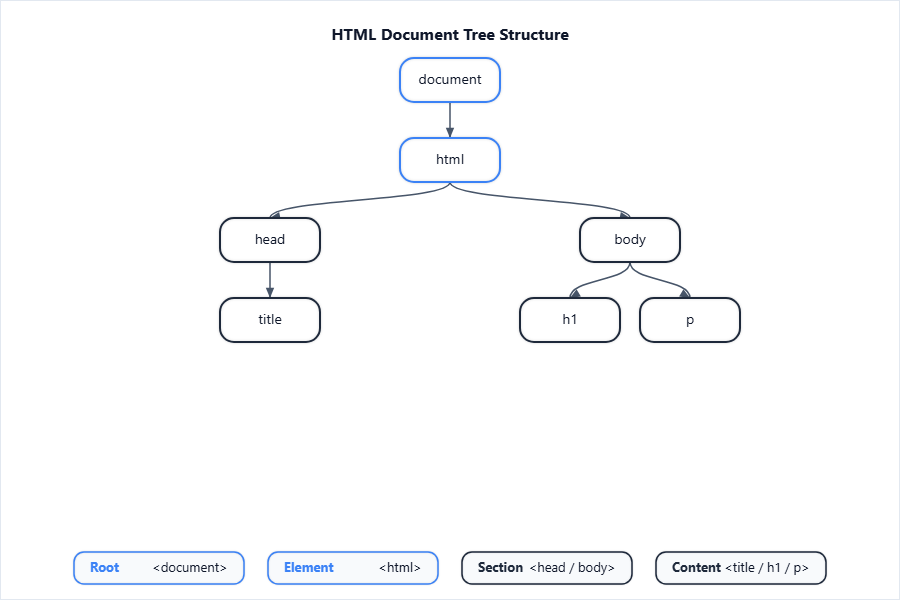
Shows how elements are structured in a parent-child hierarchy.
3.2 DOM Manipulation
Accessing Elements:
-
document.getElementById("id")— fastest, by id -
document.querySelector("css_selector")— by any CSS selector
Modifying Content/Attributes:
let para = document.getElementById("demo");

para.innerHTML = "New content"; // change HTML inside

para.style.color = "blue"; // change style
3.3 Form Validation with JavaScript
[!IMPORTANT]
Form validation checks user input on the client side before submitting to the server.
Typical checks:
-
Empty fields
-
Email pattern
-
Number (digits only), min/max length
Numerical Example:
<form id="login" onsubmit="return validateForm()">

  <input type="text" id="username">

  <input type="password" id="password">

  <input type="submit" value="Login">

</form>

<script>

function validateForm() {

  let user = document.getElementById("username").value;

  if(user === "") {

    alert("Username must not be empty");

    return false;

  }

  return true;

}
</script>
[!TIP]
Always call validation function on
onsubmit. Returnfalseto prevent wrong form submission.
3.4 DHTML – Combining HTML, CSS and JavaScript
[!IMPORTANT]
DHTML (Dynamic HTML) is a set of technologies (HTML + CSS + JavaScript + DOM) that enables interactive and animated web pages.
Features:
-
Real-time changes to style/content without page reload
-
Animation, moving objects, interactive menus
Real-life Use Cases:
-
Drop-down menus that open/close
-
Real-time form validation
-
Image sliders
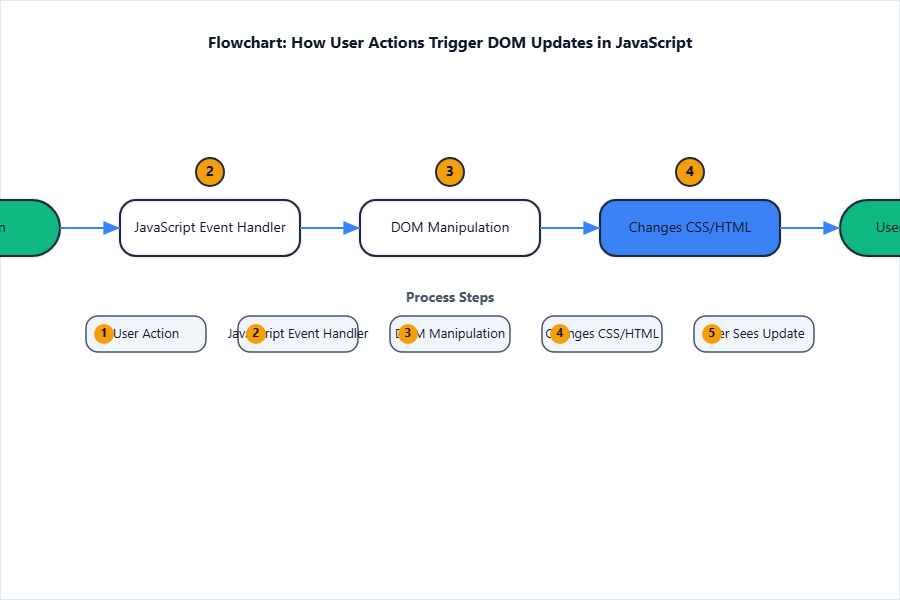
Shows how user interaction passes through JS and DOM for DHTML changes.
3.5 Event Handling and Button Interactions
[!IMPORTANT]
JavaScript handles user actions (events) like clicks or keypresses using event handler attributes or listeners.
Types of Events:
-
Mouse events:
onclick,onmouseover -
Keyboard events:
onkeypress,onkeydown -
Form events:
onsubmit,onchange
Attaching Handlers:
-
In HTML:
<button onclick="myFunc()">Click me</button> -
In JS:
document.getElementById("btn").onclick = myFunc;
Numerical Example (Show text on button click):
<button onclick="showMsg()">Show Message</button>

<p id="msg"></p>

<script>

function showMsg() {

  document.getElementById("msg").innerText = "Hello, you clicked!";

}
</script>
[!TIP]
Remember, handler functions must match the attribute (e.g., use
onclickfor clicks). Always check IDs are correct.
END OF UNIT 3 SHORT NOTES